
Timegrapher
A watchmaker's timing machine, in your iPhone.
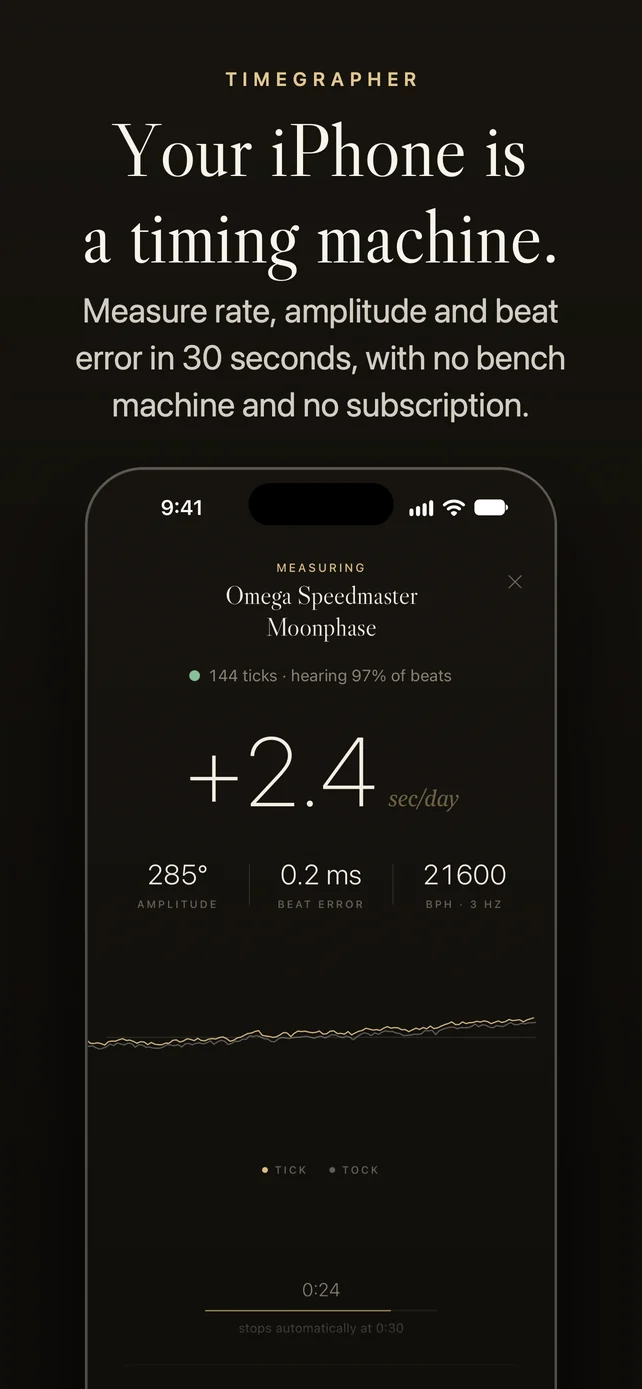
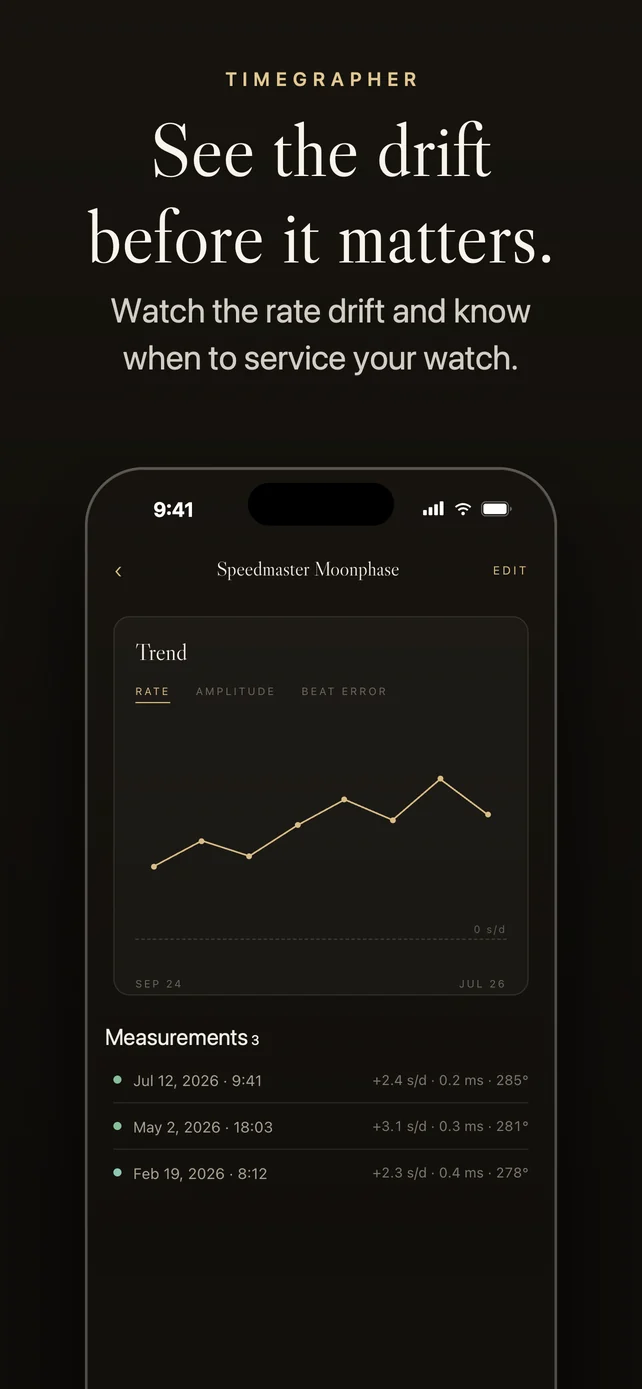
Rate, amplitude, and beat error in about thirty seconds. Timegrapher listens to your mechanical watch through the iPhone's microphone, then keeps your whole collection, every reading, and what each watch is worth, in one place.
How to check your mechanical watch's accuracy with an iPhone
Rate, amplitude, beat error
Seconds gained or lost per day, how far the balance swings, and the symmetry of tick and tock. Beat rate detected from 18,000 to 36,000 bph.
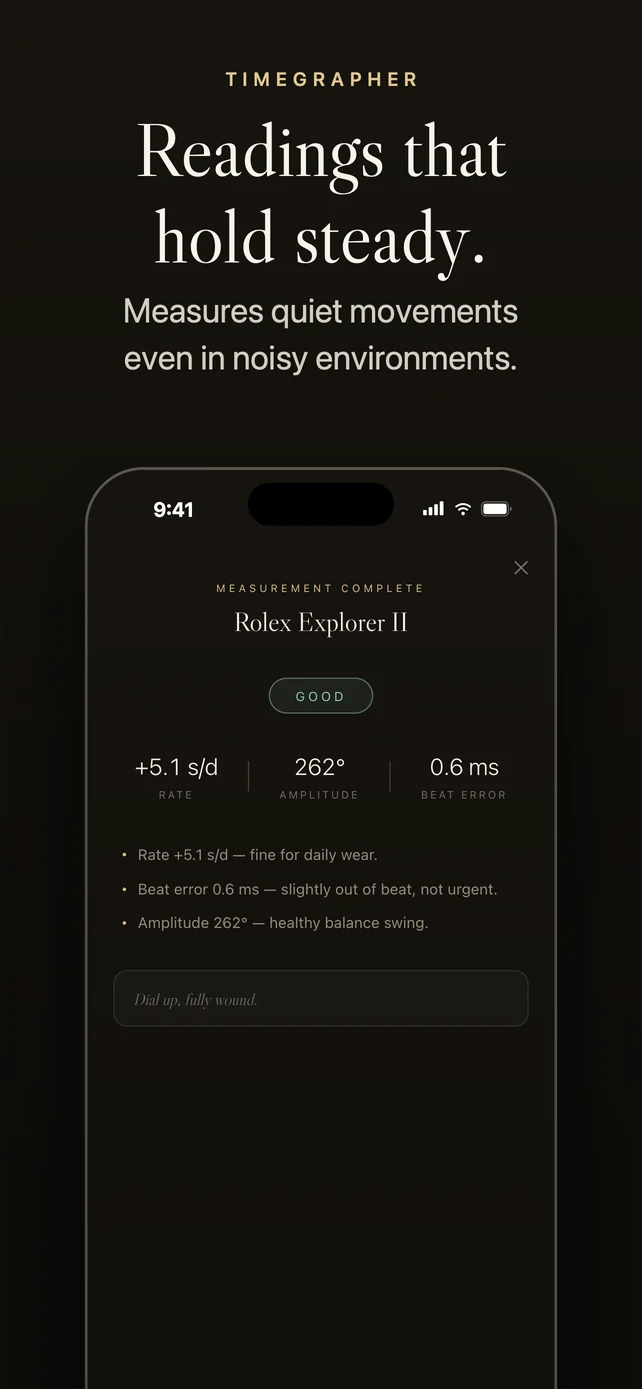
Readings that hold steady
It tracks the room's noise floor and rejects stray sounds. Amplitude comes from your calibre's own lift angle, set to a tenth of a degree.
Measure in positions
The app guides you through six positions, or four for a quicker check, and shows the average rate and the spread between positions, the way a watchmaker checks a movement.
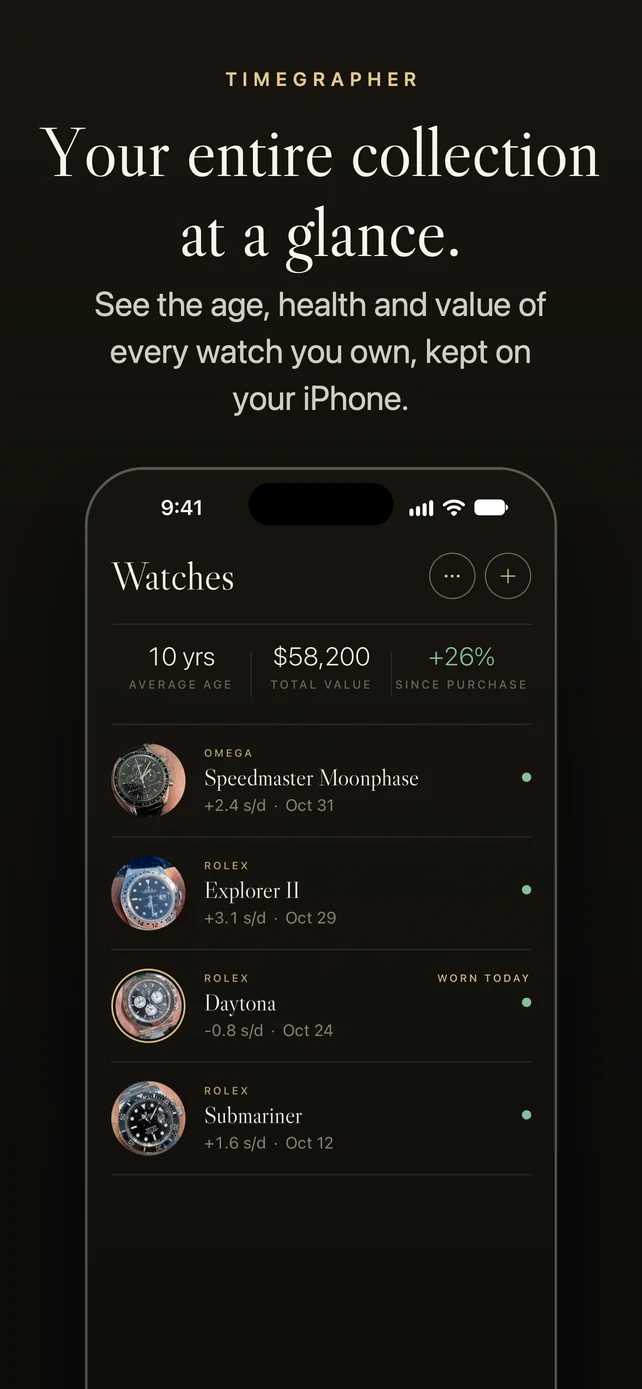
Your collection
Every watch with its reference, movement, lift angle, and up to 13 photos. Every reading is saved and charted, and a reminder tells you when to measure again. Share a one-page report as a PDF or an image, or export a CSV file. Identify from Photo suggests the brand and model.
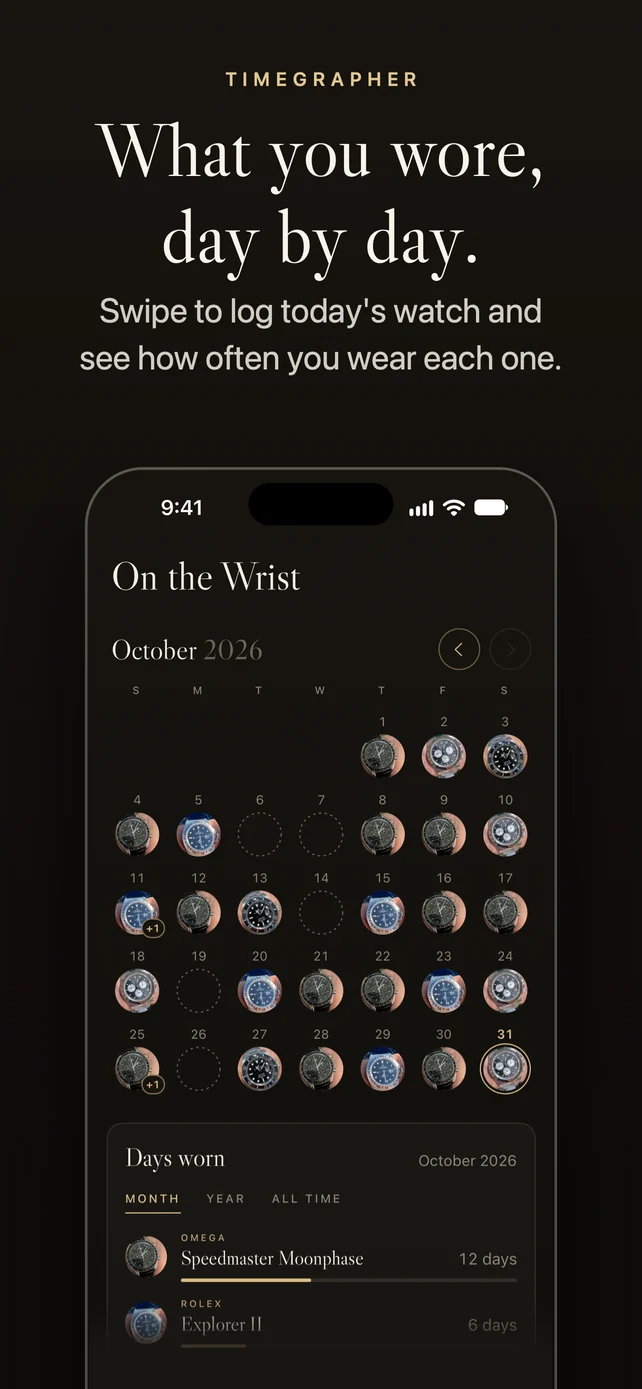
What you wore
Swipe left on a watch and tap Wore Today, or tap a day in the Calendar tab. The calendar shows the watch you wore each day and counts the days you wore each one and the days with no watch.
Accuracy from two photos
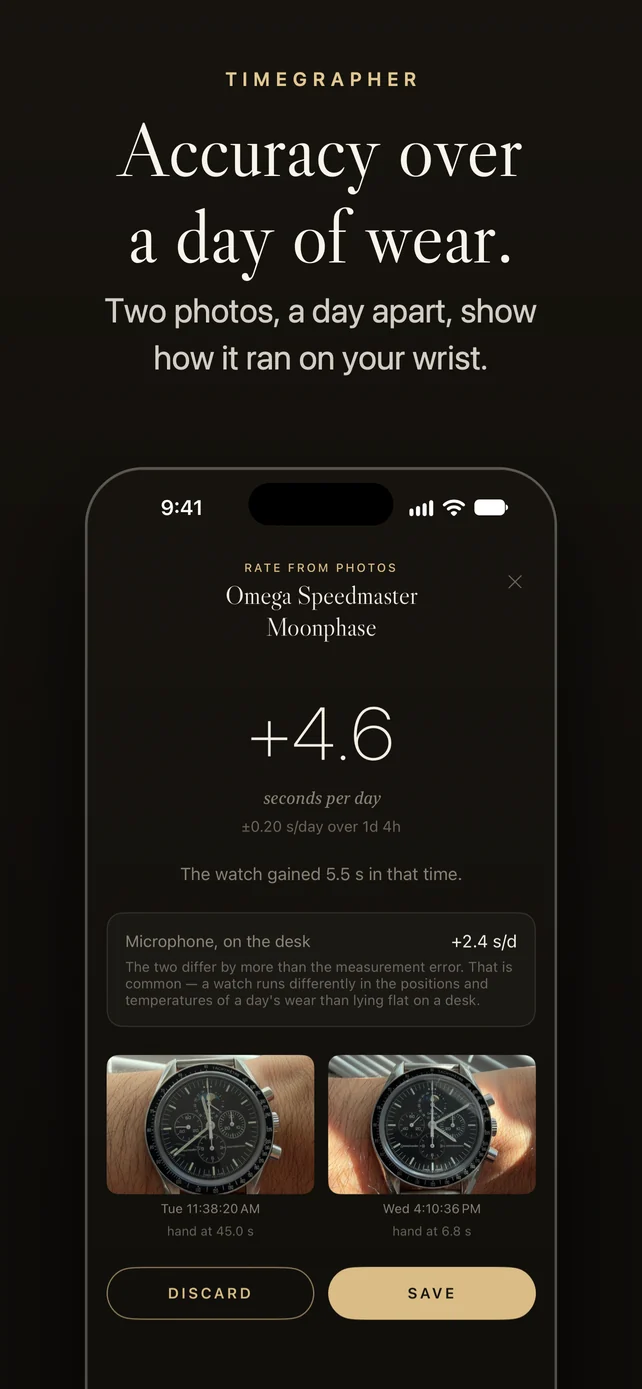
Photograph the dial today and again tomorrow. Timegrapher compares the photos with your iPhone's clock and shows how the watch ran on your wrist. Quartz watches work too: take the photos a week or two apart to see how many seconds a month they gain or lose. On a digital watch, Timegrapher reads the time on the display for you to check.
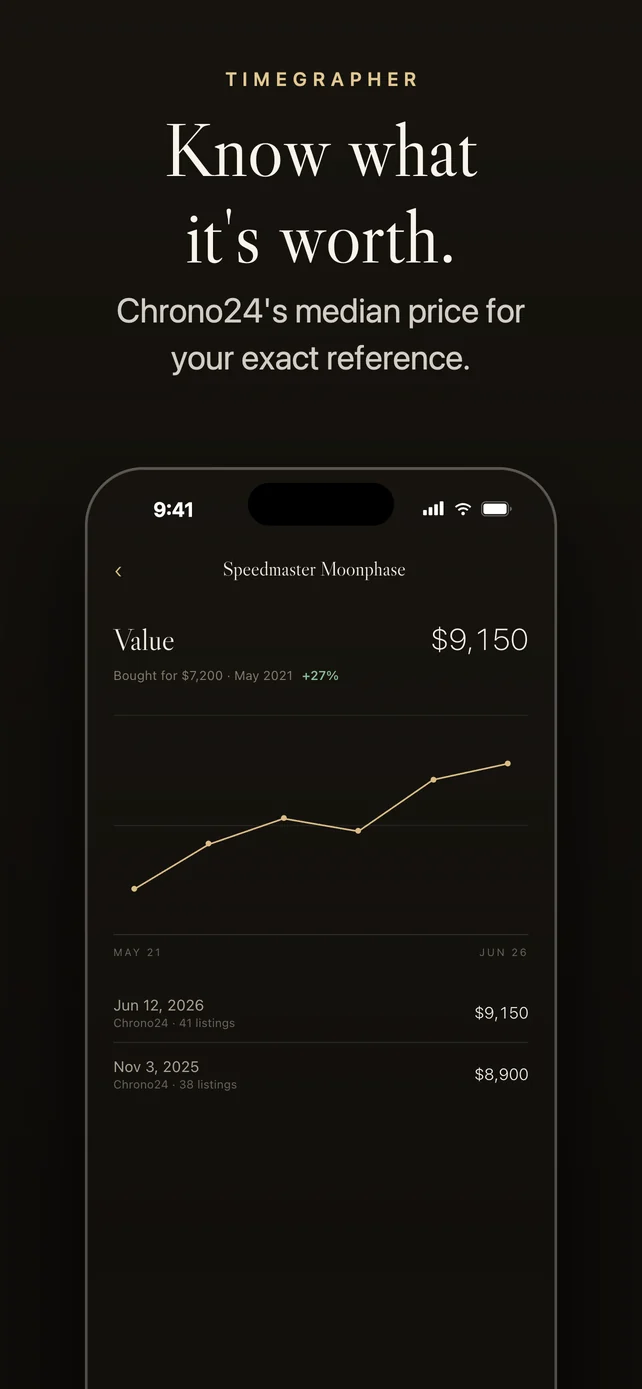
Know what it's worth
Current Chrono24 asking prices for your exact reference, with the median worked out on your iPhone.
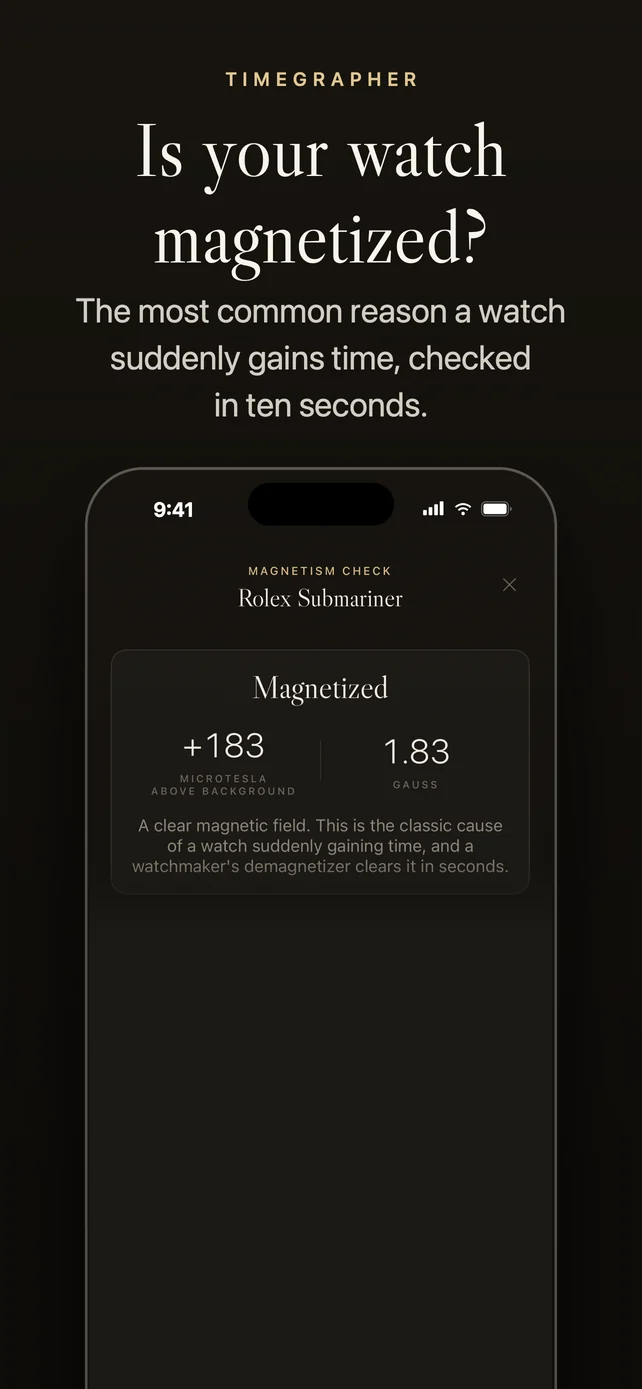
Magnetism check
A magnetized hairspring is the most common reason a watch suddenly gains time. Sweep the watch across the back of your iPhone and its magnetometer tells you whether it needs demagnetizing.
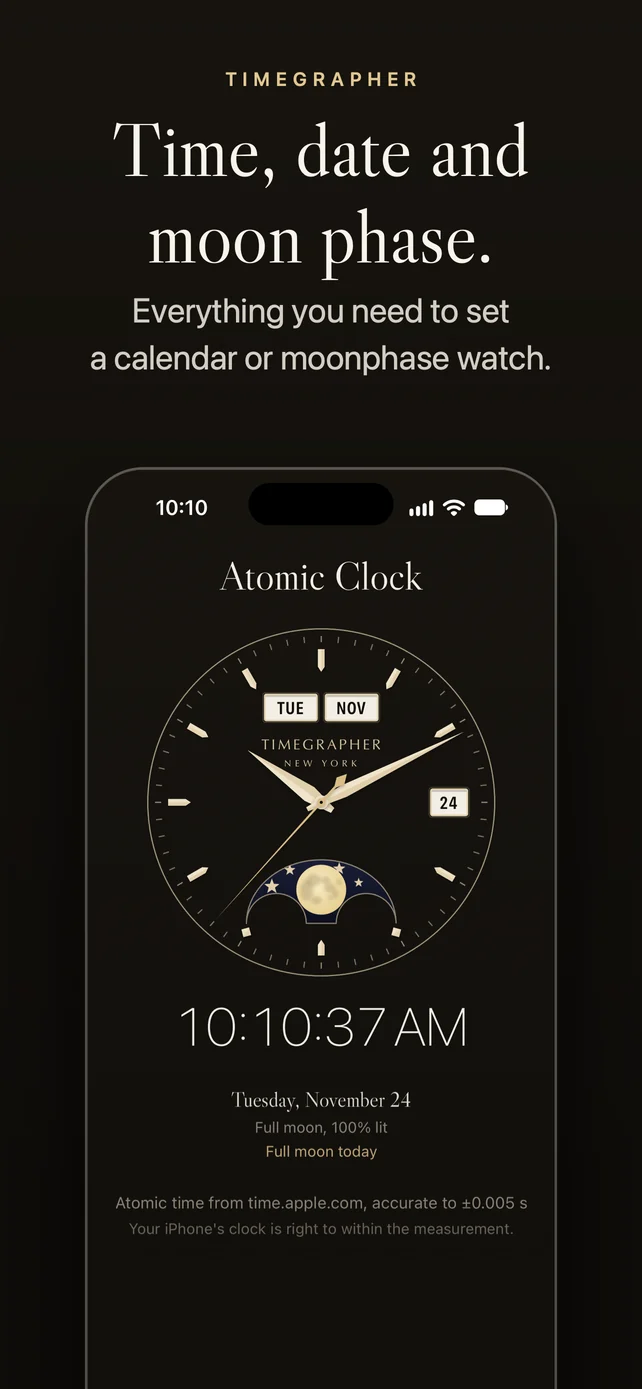
Atomic clock, date and moon phase
The Clock tab shows the exact time from Apple's time server and how far your iPhone is off. Countdown tones before each minute help you set your watch to the second. The dial also shows the day, date, month and moon phase, and the tab explains how to set a calendar or moonphase watch.
What people say.
-
“Timegrapher is extremely reliable. I get an accurate measure of the rate of my watches in no time! It also let’s me track the price of my collection over the years”
Review on Reddit
Questions and answers
Can an iPhone measure how accurate my mechanical watch is?
Yes. Timegrapher listens to the watch through the iPhone's own microphone and works like a watchmaker's timing machine. In about 30 seconds it shows the rate (seconds gained or lost per day), the amplitude (how far the balance wheel swings) and the beat error (the difference between tick and tock).
It works with automatic and hand-wound watches. The first watch is free, and there is no subscription. See it on the App Store.
How do I measure my watch with Timegrapher?
- Wind the watch and go somewhere quiet.
- Tap Add watch and enter the movement and its lift angle, if you know it.
- Tap Measure and rest the bottom edge of the iPhone firmly on the watch, ideally on the glass.
- Keep still. The measurement stops by itself at 0:30 and shows the rate, amplitude, beat error and a verdict.
What are good values for rate, amplitude and beat error?
These are the bands Timegrapher uses for its verdict:
- Rate: within ±5 seconds a day is chronometer territory. Up to ±15 is fine for daily wear. From ±30 the watch needs regulating.
- Amplitude: 250° to 315° is healthy for a wound watch lying dial up. Below 220° a service is due soon, and below 200° the oil has probably dried. Above 315° the balance risks knocking.
- Beat error: under 0.3 ms is well in beat. From 0.8 ms an adjustment is worth it, and above 1.5 ms the watch is noticeably out of beat.
Rates differ between positions, so note whether the watch was dial up, dial down or crown down. Measure in positions takes each one in turn.
How do I know if my watch is magnetized?
A magnetized hairspring is the most common reason a mechanical watch suddenly gains time, often minutes a day. Timegrapher checks with the iPhone's magnetometer: tap Check magnetism, measure the background field, then hold the watch against the back of the iPhone. The difference is the answer.
Take off any magnetic case, wallet or mount first. Every check is saved, so a check before and after demagnetizing shows whether it worked.
What lift angle should I use?
The lift angle is a property of the movement, and Timegrapher uses it to work out the amplitude. Many Swiss movements use 52°, but plenty use other values, so look up your calibre. A wrong lift angle is the usual reason a phone app shows the wrong amplitude. The rate and beat error do not depend on it. In Timegrapher you can set it to a tenth of a degree.
How accurate is a phone timegrapher compared to a bench machine?
Timegrapher times each tick to a fraction of a millisecond and fits thousands of them against the iPhone's clock, the same principle a bench machine uses. A quiet room and firm contact give the best readings. Bluetooth headphones compress the sound, so disconnect them and let the iPhone's own microphone listen.
Treat the results as a guide. For a decision about a service, a bench machine and a watchmaker's judgement come first.
Can I check how my watch runs on the wrist over a whole day?
Yes. Rate from photos compares two photos of the dial taken a day apart. Each photo records the exact time it was taken, so the position of the seconds hand shows how much the watch gained or lost while you wore it.
Does it work with quartz and digital watches?
Yes, with photos. A quartz watch keeps time with a crystal and moves its seconds hand once a second, so there is no balance wheel for the microphone to listen to. When you add the watch, set its Type to Quartz. Then use Rate from photos on the watch's page: photograph the dial, and again a week or two later. Timegrapher shows how many seconds a month the watch gains or loses.
Photos two weeks apart are precise to under a second a month. Keep them less than three weeks apart, because a seconds hand can't show a whole minute of drift. A watch with hands needs a seconds hand.
A digital watch works too, if its display shows the seconds. Set its Display to Digital as well. On your iPhone, Timegrapher reads the time from each photo. Check the digits against the photo and correct any that are wrong, or zoom in on the time and tap Read again. The display shows the whole time, so the photos can be weeks or even months apart. The longer you wait, the more precise the result. For any quartz watch, a result from photos less than a day apart is shown but not saved.
How do I set my watch's date and moon phase with Timegrapher?
Open the Clock tab. Its dial shows the day, date, month and moon phase along with the exact time. Below the dial, Timegrapher shows how many days have passed since the last full or new moon.
The Date and moon phase section on the same tab gives the steps for today. Set the date first, because on some watches the date also moves the moon. Then set the moon to full or new, whichever came last, and advance it one step for each day since. Don't change the date between about 8 PM and 4 AM, when the date mechanism is turning.
Can I keep track of which watch I wear each day?
Yes. In your collection, swipe left on a watch and tap Wore Today. To log another day, open the Calendar tab and tap that day. The calendar shows the watch you wore each day. Below it, Days worn counts the days you wore each watch and the days with no watch, for the month, the year or all time. Counting starts on the first day you log.
Swiping left no longer deletes a watch. To delete one, open it, tap Edit and tap Delete Watch at the bottom. The days you wore it stay in the calendar.
Is Timegrapher free?
Your first watch is free for good, with every measurement. Timegrapher Pro is a one-time purchase that removes the limit on watches. There is no subscription, and purchases restore on any device with the same Apple Account.
Does Timegrapher record my audio?
No. The sound is analysed live and never recorded, saved or uploaded. Your collection stays on your iPhone. The optional price check searches Chrono24 for your watch's reference, and Identify from Photo sends that one photo to Apple's Private Cloud Compute only when you tap it. Privacy policy.
Which languages is Timegrapher in?
Timegrapher is in English, German, Spanish, French, Brazilian Portuguese, Japanese, Simplified Chinese and Traditional Chinese.
- Microphone audio is analyzed live and is never recorded or saved.
- Your collection and measurements are stored only on your iPhone.
- The optional price check searches Chrono24 for your watch's reference.
- Identify from Photo sends the photo to Apple's Private Cloud Compute only when you tap it. Apple doesn't keep it, and the developer never sees it.
- The Clock tab gets the time from Apple's time server. The request carries no personal data.


